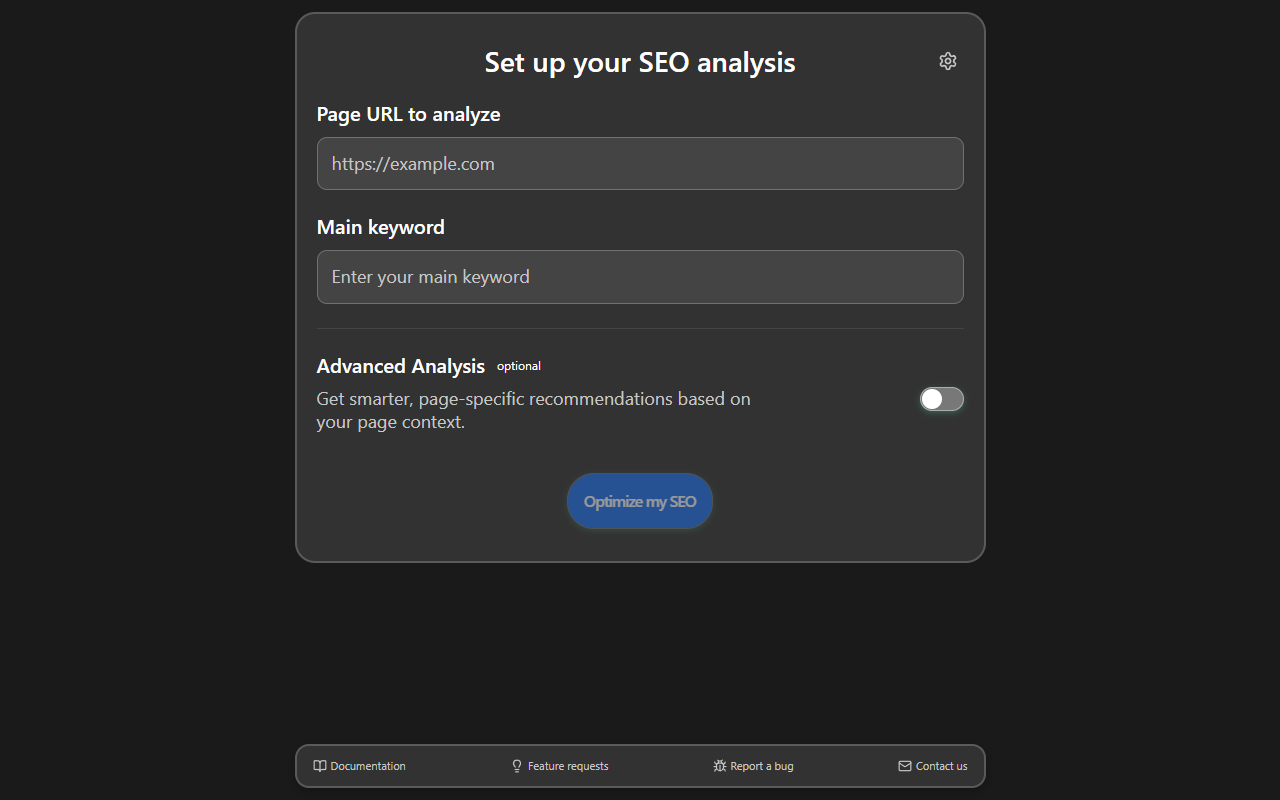
AI SEO Copilot started as a Webflow app. Sofian Bettayeb and I launched V1 inside the Webflow Designer, and it grew to nearly 20,000 installs -- far more than either of us expected. The app does something straightforward: enter your target keyword, click "Optimize my SEO," and get a 0-100 score with actionable recommendations across your titles, meta descriptions, headings, images, links, structured data, and more. Connect an OpenAI API key, and it generates suggested fixes with one click.
The Webflow version worked well for Webflow users. But the more I worked with developers who needed SEO help, the more I realized we'd built a tool that most of them couldn't use. If your site runs on Next.js, WordPress, Astro, or anything that isn't Webflow, the app simply didn't exist for you. The SEO analysis engine -- the scoring, the keyword tracking, the checks for Open Graph tags and JSON-LD -- none of it was Webflow-specific. We'd just locked it inside a Webflow-specific container.
So we rebuilt it as a Chrome extension. It's free, open source, and available on the Chrome Web Store today.
The Problem with Platform-Specific Distribution
The Webflow Marketplace is great if your entire audience is Webflow users. Ours wasn't. I build WordPress sites, Next.js apps, and static sites daily. Every time I'd finish a client build and want to run an SEO audit, I'd switch between three or four different tools -- some paid, some free-tier-limited, all requiring accounts -- to get what AI SEO Copilot already does in one panel.
The Webflow app also has a fundamental architectural constraint I wrote about previously: it's registered as a Designer extension, which means it can only interact with the Webflow Designer API. That API doesn't see every element on the page. Images inside ComponentInstances, content inside HtmlEmbeds -- the app can analyze them but can't always modify them programmatically. A Chrome extension sidesteps this entirely. It works on the rendered page, the same page Google's crawler sees.
There's a broader trend here, too. Developers increasingly build on multiple platforms depending on the project. Locking a developer tool to one marketplace means asking people to maintain different toolchains for different stacks. A Chrome extension is framework-agnostic by definition. Whether you're looking at a deployed Next.js app, a WordPress staging site, or a localhost:3000 dev server, the extension works the same way.
The Technical Rebuild
The Chrome extension is a full rewrite, not a port. The Webflow app was built to run inside Webflow's Designer environment. The Chrome extension is built with React 19, TypeScript, Tailwind CSS, and Vite, targeting Chrome's Manifest V3 extension architecture.
Here's what the manifest looks like:
{
  "manifest_version": 3,
  "name": "AI SEO Copilot",
  "version": "0.1.0",
  "minimum_chrome_version": "116",
  "permissions": ["tabs", "sidePanel", "storage", "scripting"],
  "host_permissions": ["<all_urls>"],
  "background": {
    "service_worker": "src/background/service-worker.ts",
    "type": "module"
  },
  "content_scripts": [
    {
      "matches": ["<all_urls>"],
      "js": ["src/content/index.ts"]
    }
  ],
  "side_panel": {
    "default_path": "src/sidepanel/index.html"
  }
}
Four permissions: tabs for knowing what page you're on, sidePanel for the analysis UI, storage for persisting your API key and settings, and scripting for injecting the page analyzer. The host_permissions wildcard is necessary because the extension needs to read the DOM of whatever page you're viewing -- there's no way to predict which URLs you'll want to analyze.
The Side Panel Problem
The core UI lives in Chrome's side panel API. When you click the extension icon, the analysis panel opens alongside whatever page you're viewing. This was a deliberate choice over a popup. Popups close the moment you click away from them, which makes them terrible for a workflow where you're reading recommendations and simultaneously editing your page's HTML.
Getting the side panel to behave correctly was its own challenge, and I wrote a whole blog post about it. The short version: Chrome's sidePanel API has a quirk where panels open globally across all tabs even when you specify a tabId. If you don't handle this, your SEO analysis panel shows up on every tab -- including tabs that have nothing to do with what you're analyzing.
The fix requires calling both setPanelBehavior and setOptions in the right order at service worker initialization, then scoping panel visibility per tab on click:
// Disable automatic panel opening — we handle it manually for per-tab scoping
chrome.sidePanel.setPanelBehavior({ openPanelOnActionClick: false });

// Disable the panel globally by default
chrome.sidePanel.setOptions({ enabled: false });

// Open panel only on the specific tab when the user clicks the icon
chrome.action.onClicked.addListener((tab) => {
  if (!tab.id) return;

  chrome.sidePanel.setOptions({
    tabId: tab.id,
    path: "src/sidepanel/index.html",
    enabled: true,
  });
  chrome.sidePanel.open({ tabId: tab.id });
});
If you only call one of these, you get a panel that either opens on every tab or doesn't open at all. The setOptions call with enabled: false at the global level is the piece most examples miss.
We also track which tabs have the panel open using chrome.storage.session, so when you switch between tabs, the panel hides on tabs where it wasn't explicitly opened and reappears on tabs where it was. This state has to survive Manifest V3 service worker restarts, which is why it's persisted to session storage rather than kept in memory.
How the Analysis Works
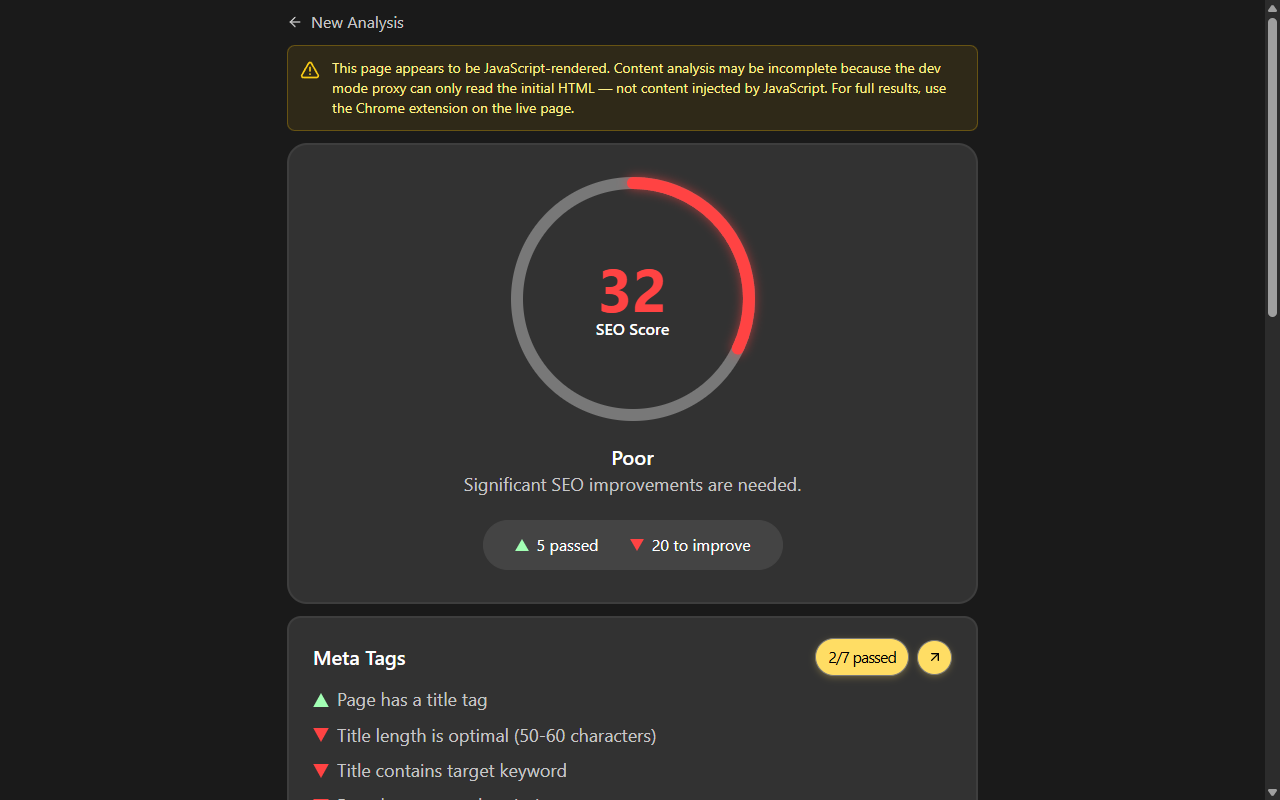
The extension's SEO analysis runs entirely in the browser. When you click "Optimize my SEO," the service worker uses chrome.scripting.executeScript to inject an analyzer function into the active tab. That function reads the page's DOM -- title tags, meta descriptions, heading hierarchy, image alt attributes, link structure, JSON-LD blocks, Open Graph and Twitter Card meta tags -- and returns the data through Chrome's messaging API.
// Service worker injects the analyzer directly into the page
const results = await chrome.scripting.executeScript({
  target: { tabId },
  func: extractPageDataInline,
});

const data = results?.[0]?.result;
if (data) {
  sendResponse({ data });
}
The extractPageDataInline function runs in the page's context, so it sees the fully rendered DOM -- including content injected by JavaScript frameworks like React, Vue, or Next.js. This is a significant advantage over tools that only read the initial HTML response, since modern sites often render their content client-side.
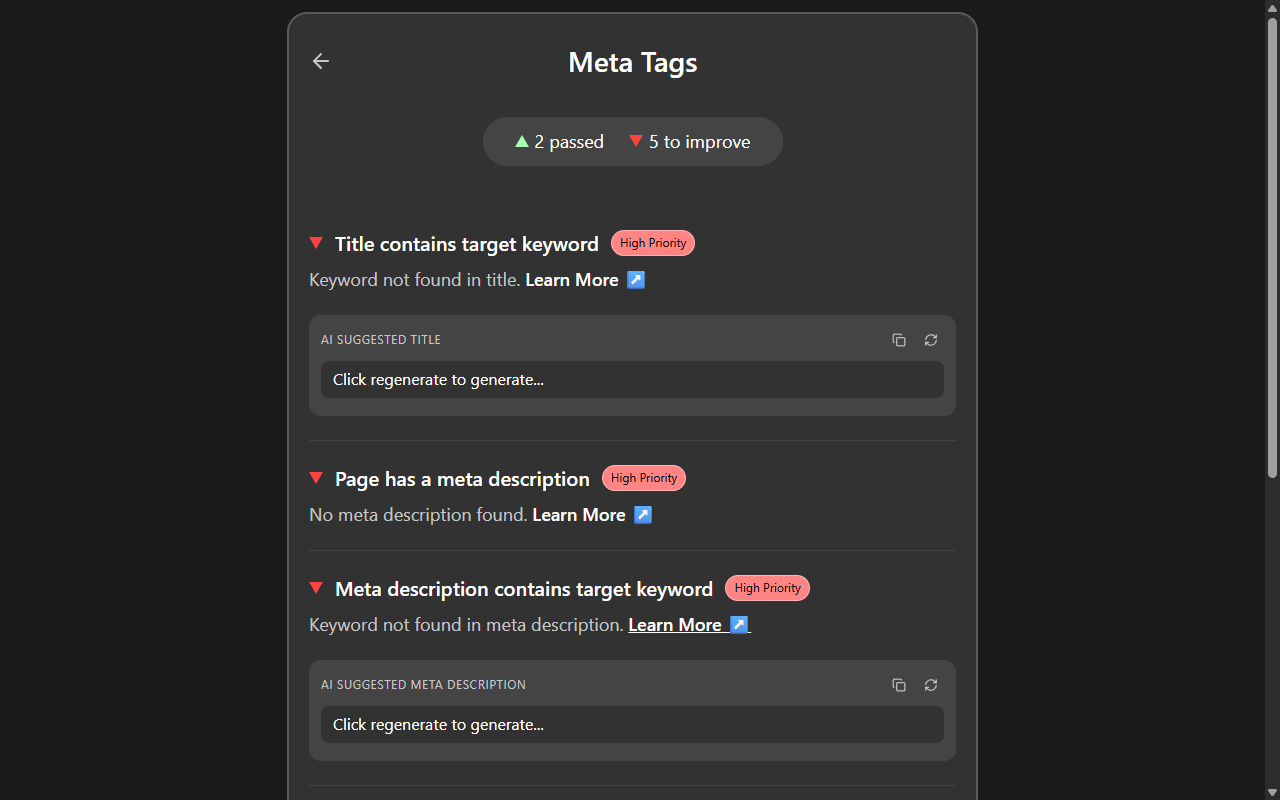
The analysis engine then scores everything against a set of weighted checks, each labeled High Priority or Medium, so you know what to fix first. The eight categories it covers are:
- Meta Tags (title length, meta description, canonical URL)
- Headings (H1 presence, hierarchy, keyword usage)
- Images (alt text coverage, optimization hints)
- Links (internal and external counts, broken link detection)
- Content Quality (word count, keyword density, readability)
- Structured Data (JSON-LD validation, schema type detection)
- Social & Open Graph (OG tags, Twitter Cards, social preview completeness)
- Technical SEO (robots meta, canonical consistency, mobile viewport)
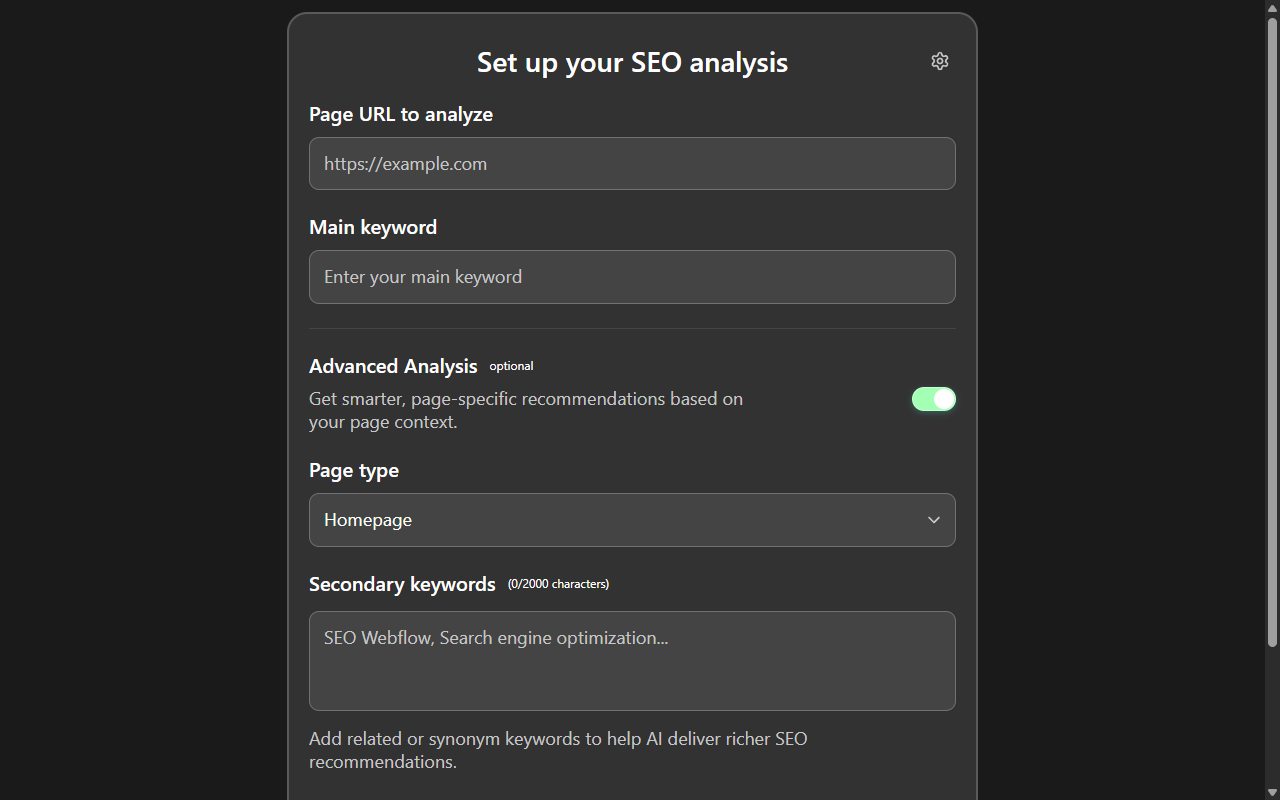
There's also an Advanced Analysis mode that detects the page type -- homepage, blog post, product page, landing page -- and adjusts recommendations accordingly. A homepage and a blog post have different SEO priorities, and the scoring should reflect that.
The AI Layer
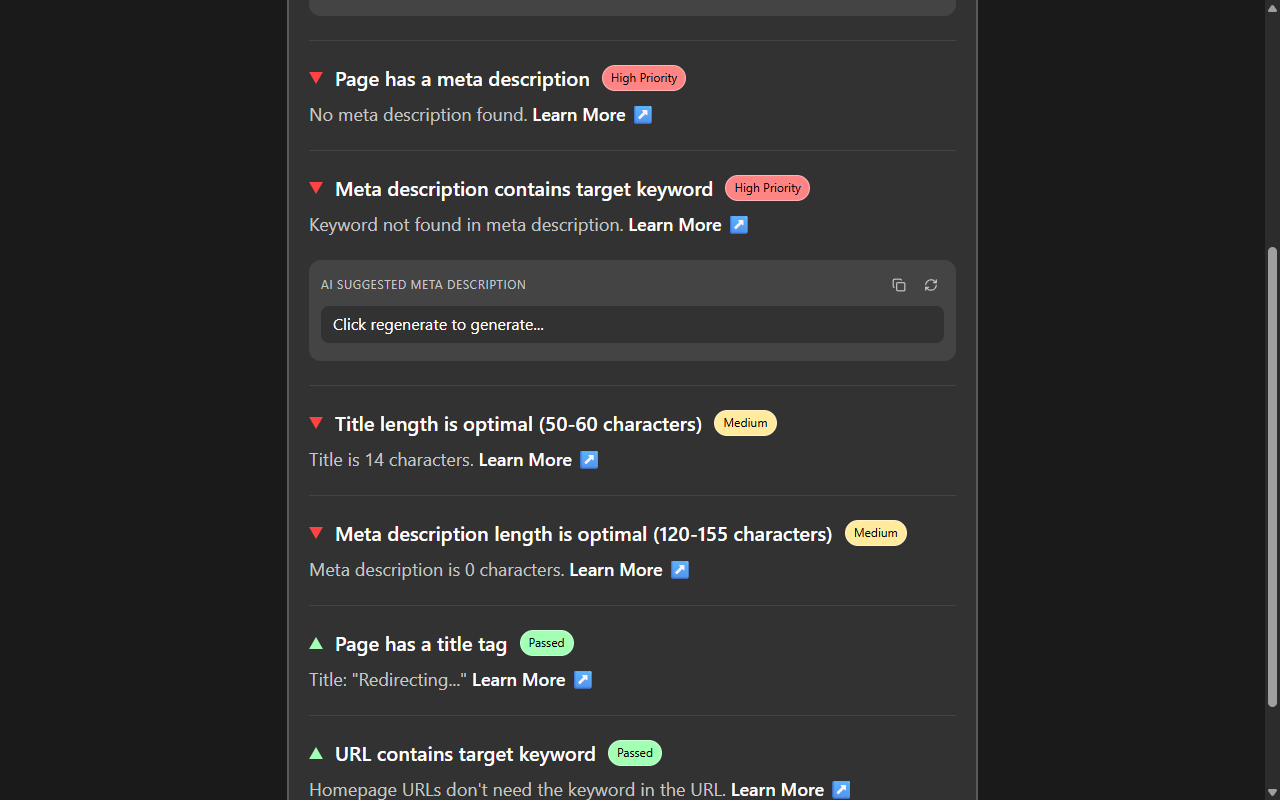
The AI features are optional and use a bring-your-own-key model. If you add an OpenAI API key in the extension's settings, it's stored in chrome.storage.local -- never sent to any server we control. When you request a suggestion, the extension makes a direct call from your browser to OpenAI's API using GPT-4o-mini. Each request costs fractions of a cent.
The extension generates title tags, meta descriptions, and image alt text tailored to your page content and target keyword. Every suggestion has a one-click copy button. I wrote about the complexities of AI-generated alt text in a previous post -- the Chrome extension version is simpler because it doesn't need to deal with the Webflow Designer API's asset matching quirks. It reads the image directly from the DOM and generates a description based on the page context.
Manifest V3 Lessons for Extension Developers
If you're building a Chrome extension in 2026, a few things I'd call out from this project:
Service workers are not persistent. They spin up on events and shut down when idle. If you're coming from a Manifest V2 background script model where you could hold state in memory, you need to rethink your architecture around chrome.storage and message passing. Our service worker handles tab lifecycle events and coordinates between the content script and the side panel, but it persists all state to chrome.storage.session so nothing is lost on restart.
Content script injection via executeScript is more reliable than declared content scripts for on-demand analysis. We declare a content script in the manifest for basic setup, but the actual page analysis is injected on demand through the service worker. This avoids timing issues where the content script runs before the page has finished rendering.
Session storage (chrome.storage.session) is your friend for ephemeral per-tab state. It survives service worker restarts but clears when the browser closes, which is exactly the lifecycle you want for per-tab analysis data.
Privacy as a Technical Decision
We didn't bolt on a privacy-first architecture for marketing. It genuinely simplifies the system. There's no backend to maintain, no user database, no authentication flow, no GDPR compliance headaches beyond what the browser already handles. The extension is a client-side application that reads the current tab's DOM and does math on it. The only external call is the optional OpenAI request, and even that is a direct browser-to-API call with a key the user controls.
For developers who are cautious about extensions that read page content -- and you should be -- the entire source code is on GitHub under an MIT license. You can read every line, build it yourself with pnpm build, and load it as an unpacked extension if you'd rather not install from the Chrome Web Store.
The Stack and How to Contribute
The extension is built with React 19, TypeScript (77% of the codebase), Vite for bundling, Zustand for state management, Tailwind CSS for styling, and Vitest for testing. There are 283 tests covering the analysis engine, UI components, and Chrome API interactions. The repo has CI via GitHub Actions that runs the full test suite on every push.
If you want to contribute or just poke around, the setup is straightforward: clone the repo, run pnpm install in the app directory, run pnpm build, and load the app/dist folder as an unpacked extension in chrome://extensions/ with Developer mode enabled. The dev server (pnpm dev) gives you hot reload at localhost:5173 for UI work, though you'll need the built extension for anything that touches Chrome APIs.
Sofian and I built this together -- he drives the SEO strategy and growth side, I write the code. We're actively taking feature requests. If there's an SEO check you want to see added, open an issue on GitHub.
Try It
AI SEO Copilot is free on the Chrome Web Store. No accounts, no tracking, no login. Install it, open any page, enter your keyword, and see what needs fixing.
GitHub: die-Manufaktur/AI-SEO-Copilot-for-Chrome
Want the full overview of both the Webflow plugin and the Chrome extension? See the AI SEO Copilot product page for features, how it works, and install links.
Building a website for your small business? I build professional WordPress and Webflow sites for small businesses, starting at $1,000. If you need a site that's built for SEO from day one, get in touch.
I also build free, open-source developer tools like AI SEO Copilot. If you find my work helpful, consider supporting me on Patreon.
Your digital website sherpa: practical web tips for small businesses, straight to your inbox
Join the Digital Website Sherpa newsletter. No spam, just practical, actionable advice to help you grow your business online. Unsubscribe anytime.
Paul Mulligan
Freelance Web Developer
Paul Mulligan is a freelance web developer based in Baltimore, MD with 10+ years of experience building WordPress and Webflow sites for small businesses. He focuses on clean design, fast performance, and real results.
Support My Open Source Work
I build free, open-source developer tools like Flavian and Aurelius. If you find my work helpful, consider supporting me on Patreon.
Support on PatreonRelated Articles
Chrome Extension Side Panel Opens on Every Tab? Here's the Per-Tab Fix
Read ArticleUsing the Webflow Designer API to Generate and Apply AI Image Alt Text
Read ArticleReady to Transform Your Business's Website?
Let's discuss how I can create a website that attracts and converts more customers.
Get a Free Consultation