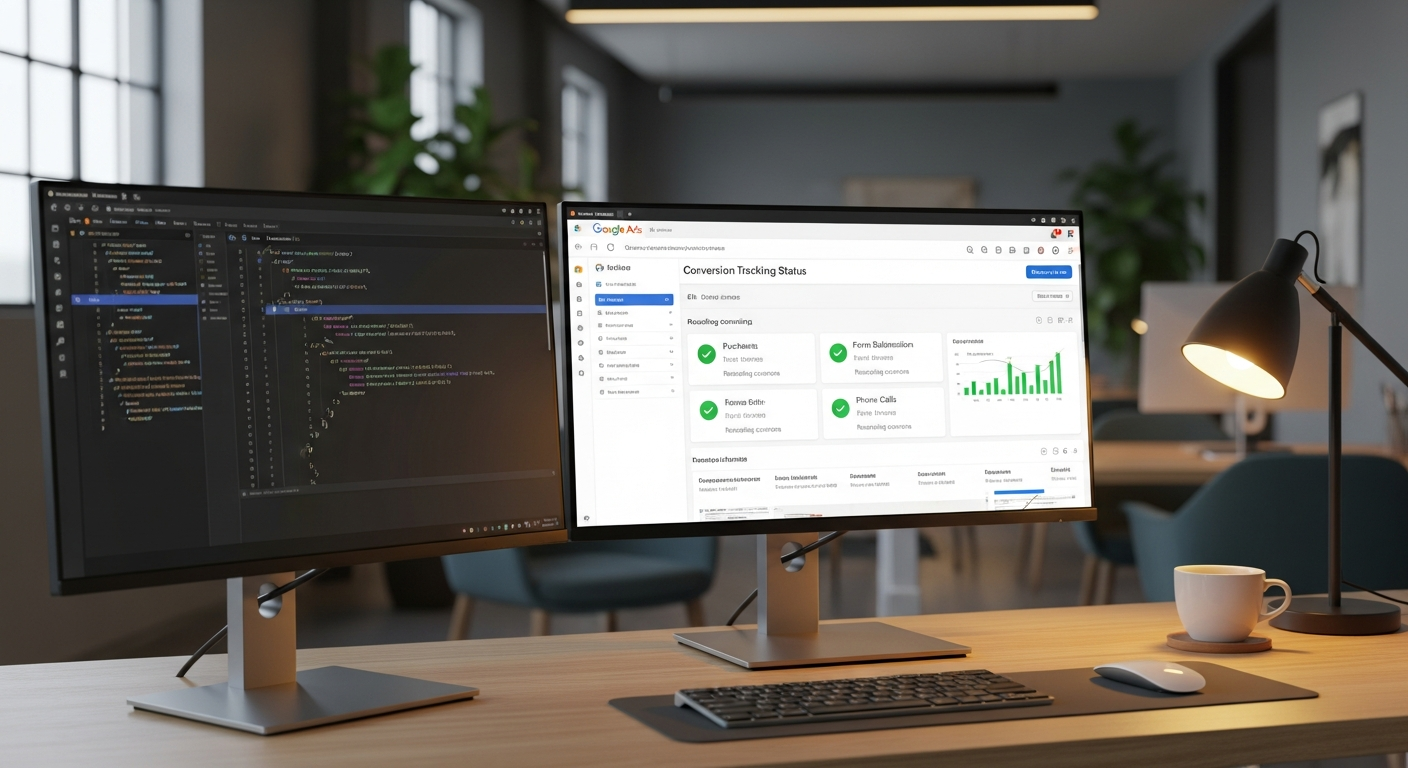
You installed the conversion tag. It is right there in the page source. And Google Ads still says the tag is inactive.
I hit this on my own site, and the fix had nothing to do with the tag code. In most cases the culprit is Google Consent Mode v2, not your implementation. This post walks through the fix that worked, the React single-page-app wrinkles that make it worse, and a section I added in this update: what it means when your browser shows conversion.js as blocked.
Updated August 2026 with the blocked-script section and current verification steps.
Why Google Ads says the tag is inactive
Consent Mode v2 asks you to declare default consent states before any Google tag fires. The three that matter for ads are ad_storage, ad_user_data, and ad_personalization.
Here is the trap. If those default to denied and nothing on your site ever updates them to granted, the tag never sends the events Google's verification looks for. Google Ads sees silence, assumes the tag is broken, and reports it as inactive. Your code can be perfect and the status will not change.
That was my case exactly. The tag was installed correctly and had never fired once.
The fix that worked
I run a US business with no meaningful EEA or UK traffic, so I set the ad consent defaults to granted and left analytics denied until someone opts in:
html<script>
window.dataLayer = window.dataLayer || [];
function gtag(){dataLayer.push(arguments);}
gtag('consent', 'default', {
  'ad_storage': 'granted',
  'ad_user_data': 'granted',
  'ad_personalization': 'granted',
  'analytics_storage': 'denied'
});
</script>
Two rules make this work reliably:
- Set the defaults synchronously, before the gtag.js script loads. If the consent default runs after the tag, early events are lost.
- Fire the conversion on a successful form submission, not on the button click. A click is not a lead. A submission that your backend accepted is.
One honest caveat: if you do serve visitors in the EEA or the UK, you cannot blanket-grant consent. You need a real consent banner that updates these values per visitor, and that is a compliance decision, not just a tag setting. Google documents how the modes behave in its consent mode guide.
The React SPA wrinkles
If your site is a React single-page app, two extra problems show up.
First, duplicated injection points. My site is a React app deployed on Replit, and the tag setup existed in both a server-side HTML template and client-side code. Development and production served different files. I fixed the consent defaults in one place and production kept serving the old defaults. If you inject tags in more than one place, change every copy.
Second, route changes are not page loads. The tag loads once and your thank-you state may never be a real navigation. That is another reason to fire the conversion event from the form's success handler instead of relying on a page view.
Why conversion.js shows as blocked
While debugging this, you will probably open DevTools and see a request to googleadservices.com/pagead/conversion.js marked as blocked. That word does a lot of work, and it has three different causes.
1. Your own ad blocker. uBlock Origin, Brave shields, and most privacy extensions block googleadservices.com by name. This only affects browsers running the blocker. It does not mean your tracking is broken for everyone, and no code change on your site can prevent it. Before you touch anything, retest in a private window with extensions off.
2. Your Content Security Policy. If your site sends a CSP header and it does not allow the Google Ads domains, the browser refuses to load the script and logs a CSP violation in the console. I had to add www.googleadservices.com and googleads.g.doubleclick.net to both script-src and connect-src on my own site. If the console says "Refused to load" and names your policy, this is your case.
3. Consent mode itself. With ad_storage denied under a basic consent setup, the request is never made at all. Strictly speaking nothing is blocked; nothing is sent. The Network tab just stays empty, which is the silence that gets the tag marked inactive in the first place.
The Network tab plus the console error text tells you which of the three you are looking at.
How to verify the fix
After deploying:
- Load the site in a clean private window and submit a test conversion.
- Confirm the tag fires with Google Tag Assistant.
- Check the DevTools Network tab for requests to googleads.g.doubleclick.net and googleadservices.com.
- Wait. In my case the dashboard took a day to move; Google's own conversion troubleshooting guide says the status can lag the actual fix. Give it 24 to 72 hours before concluding it failed.
Common questions
Does an ad blocker on my machine break tracking for everyone? No. It blocks the script in your browser only. Test in a clean profile before changing code.
Do I need a consent banner? If you serve EEA or UK visitors, yes, and the defaults above are not appropriate. US-only small businesses currently have more latitude, but that is a legal question worth answering properly for your situation.
How long until the status flips to active? Once a real conversion ping fires, expect the dashboard to catch up within about one to three days.
Related work
If the tag now fires but your GA4-imported conversions still look wrong in Google Ads, I wrote up that separate failure and its fix. React apps on Replit also have a matching problem with social sharing tags, covered in fixing meta tags in a Replit React app.
And if you would rather hand the whole tracking mess to someone, get in touch. Diagnosing exactly this kind of breakage is part of what I do for client sites.
Your digital website sherpa: practical web tips for small businesses, straight to your inbox
Join the Digital Website Sherpa newsletter. No spam, just practical, actionable advice to help you grow your business online. Unsubscribe anytime.
Paul Mulligan
Freelance Web Developer
Paul Mulligan is a freelance web developer based in Baltimore, MD with 10+ years of experience building WordPress and Webflow sites for small businesses. He focuses on clean design, fast performance, and real results.
Support My Open Source Work
I build free, open-source developer tools like Flavian and Aurelius. If you find my work helpful, consider supporting me on Patreon.
Support on PatreonRelated Articles
Your GA4 Conversions Are Not Missing From Google Ads. They Are Hidden.
Read ArticleFix Meta Tags on Replit React Sites: Full Guide
Read ArticleReady to Transform Your Business's Website?
Let's discuss how I can create a website that attracts and converts more customers.
Get a Free Consultation