Running a basic on-page SEO check used to mean juggling four browser tabs and three logins. One tab for a meta-tag inspector, another for a heading-structure tool, a third for an image-alt scanner, and a fourth for a structured-data validator. Half of them ask you to create an account; the rest cap you at five free checks per month. By the time you have a usable picture of what is wrong with a single page, the page itself is the least of your problems.
AI SEO Copilot collapses that workflow into one panel. It is a free, open-source Chrome extension that runs in the browser's side panel, requires no account, and analyzes whatever page you are looking at against a target keyword in roughly thirty seconds. The whole project came out of a Webflow app we had been running for about two years; I wrote about the rebuild and the architectural reasons behind it in the launch announcement. This post is the user manual: how to install it, how to read the score, how the optional AI features work, and how a real audit looks from start to finish.
Installing and Pinning the Extension
Installation is a single click. Open the Chrome Web Store listing, click Add to Chrome, and confirm the permissions prompt. The extension asks for tabs, sidePanel, storage, and scripting permissions. The tabs and scripting permissions are how it reads the rendered DOM of the page you are auditing; storage holds your settings locally; sidePanel is the UI surface. There is no host server, no telemetry endpoint, no signup flow.
Once it is installed, pin the puzzle-piece icon in the Chrome toolbar so the extension button is always one click away. Open any URL you want to audit, click the AI SEO Copilot icon, and the side panel slides in from the right. It opens only on the tab you clicked it from, which sounds obvious but is a genuine quirk of Chrome's sidePanel API that took some work to get right; if you are building your own extension and running into the same issue, the side panel per-tab fix has its own writeup.
Setting Your Target Keyword
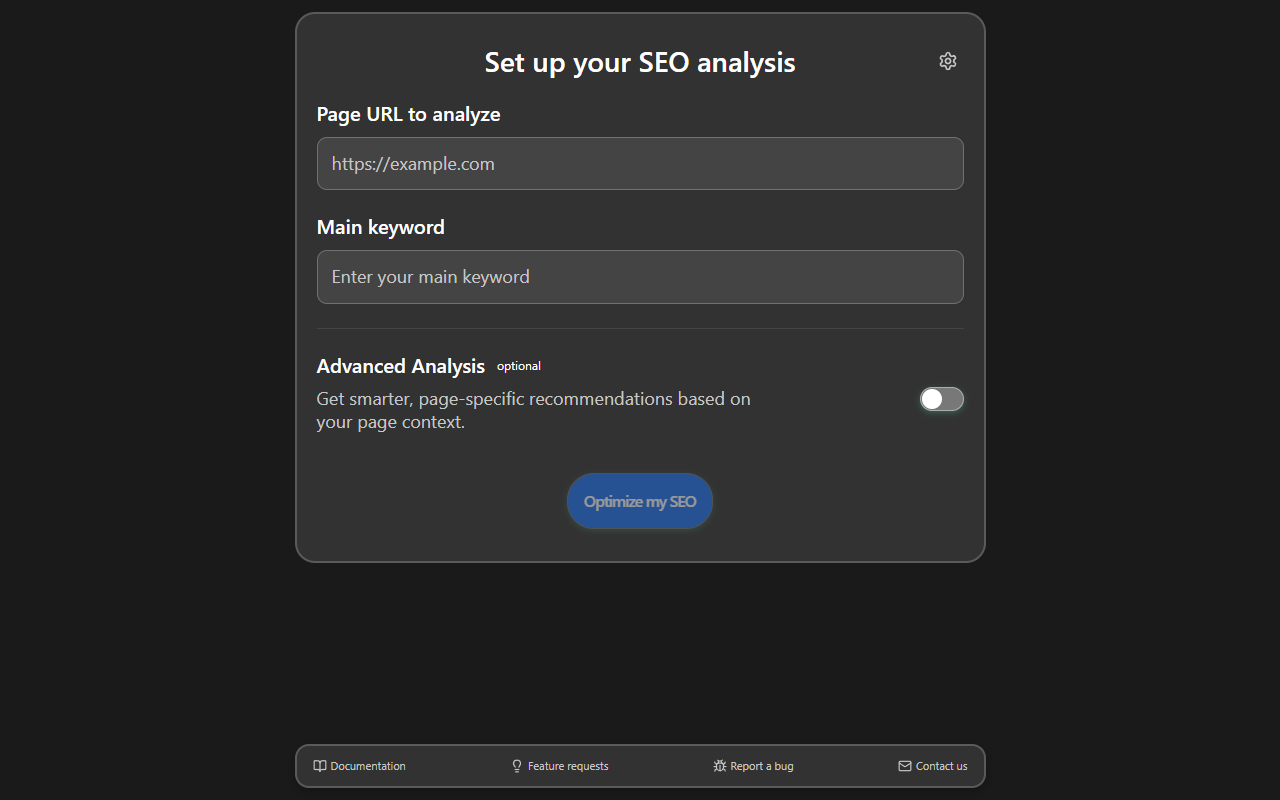
The first thing the panel asks you to do is type a target keyword. This is the single most important input. Every check the extension runs, from title-tag scoring to heading hierarchy to content density, is evaluated against that keyword. The reasoning is straightforward: a page that does a beautiful job ranking for the wrong query is still a page that does not rank for the query you actually wanted.
If you are auditing a service page about WordPress development in Baltimore, your keyword is probably "wordpress development baltimore" rather than "web design." If you are auditing a blog post, use the long-tail phrase you actually want to rank for, not the broad category. Get this wrong and the score is meaningless. Get it right and the recommendations point at exactly the right fixes.
Reading the 0 to 100 Score
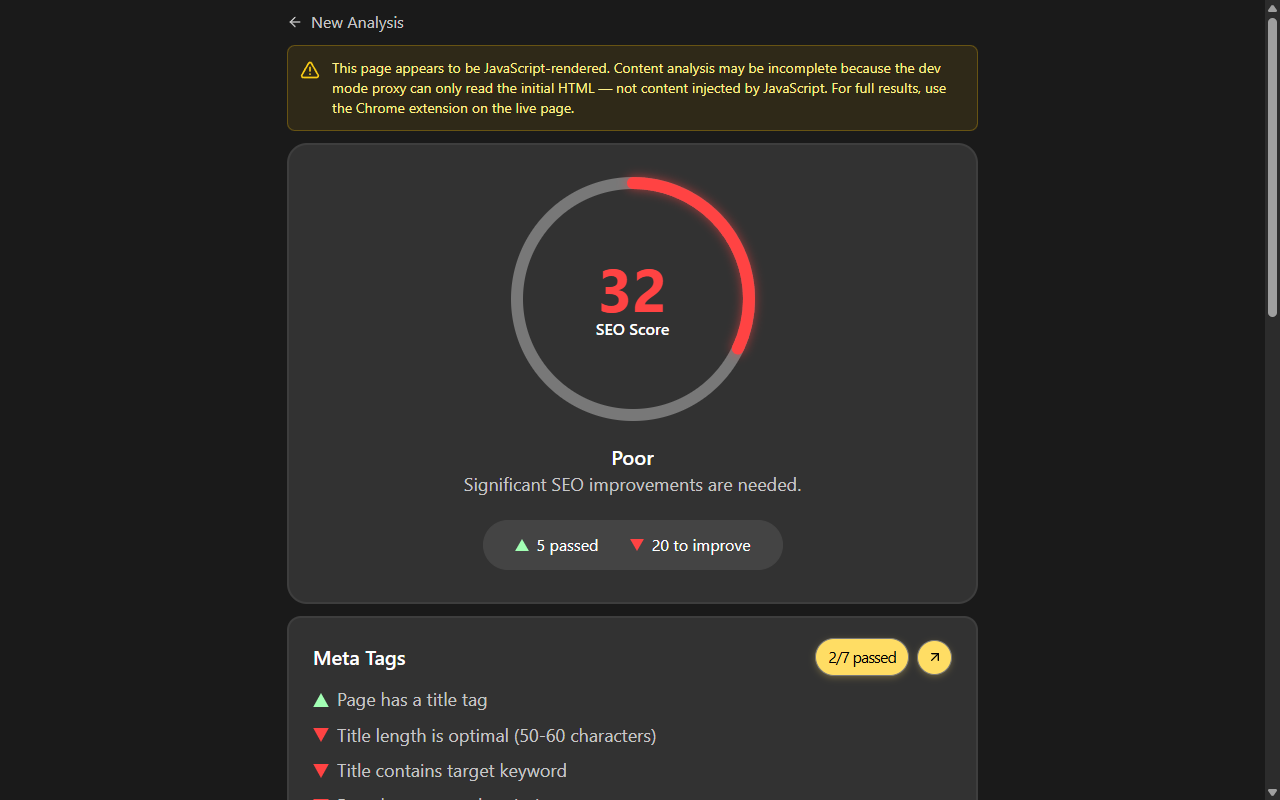
Hit Optimize my SEO and the extension injects a content script into the active tab, reads the rendered DOM, runs roughly forty weighted checks, and returns a single 0 to 100 score in a circular dial. Above 80 is healthy. Between 60 and 80 means the page works but has clear gaps. Below 60 means something structural is wrong, usually a missing title tag, a missing meta description, or no H1 at all.
Each individual check is labeled either High Priority or Medium. High Priority is the work that moves the score the most and tends to map to things Google's own documentation calls out as required. Medium is the long tail of best-practice items that compound over time. When you are short on time, fix everything in the High Priority list first; the Medium list is where you spend your second pass.
The checks are grouped into eight categories. Meta tags covers your title length, your meta description, and your canonical URL, and the title check is calibrated against Google's own guidance on title links. Headings looks at H1 presence, H2 to H6 hierarchy, and whether your keyword shows up where a crawler expects it. Images counts alt-text coverage and flags formats that hurt mobile performance. Links checks internal and external link counts and surfaces broken targets. Content quality measures word count, keyword density, and basic readability. Structured data validates any JSON-LD blocks on the page against the Schema.org reference. Social and Open Graph confirms your og: and twitter: tags are complete so link previews render correctly. Technical SEO checks robots meta, canonical consistency, and the mobile viewport tag.
Turning On Advanced Analysis
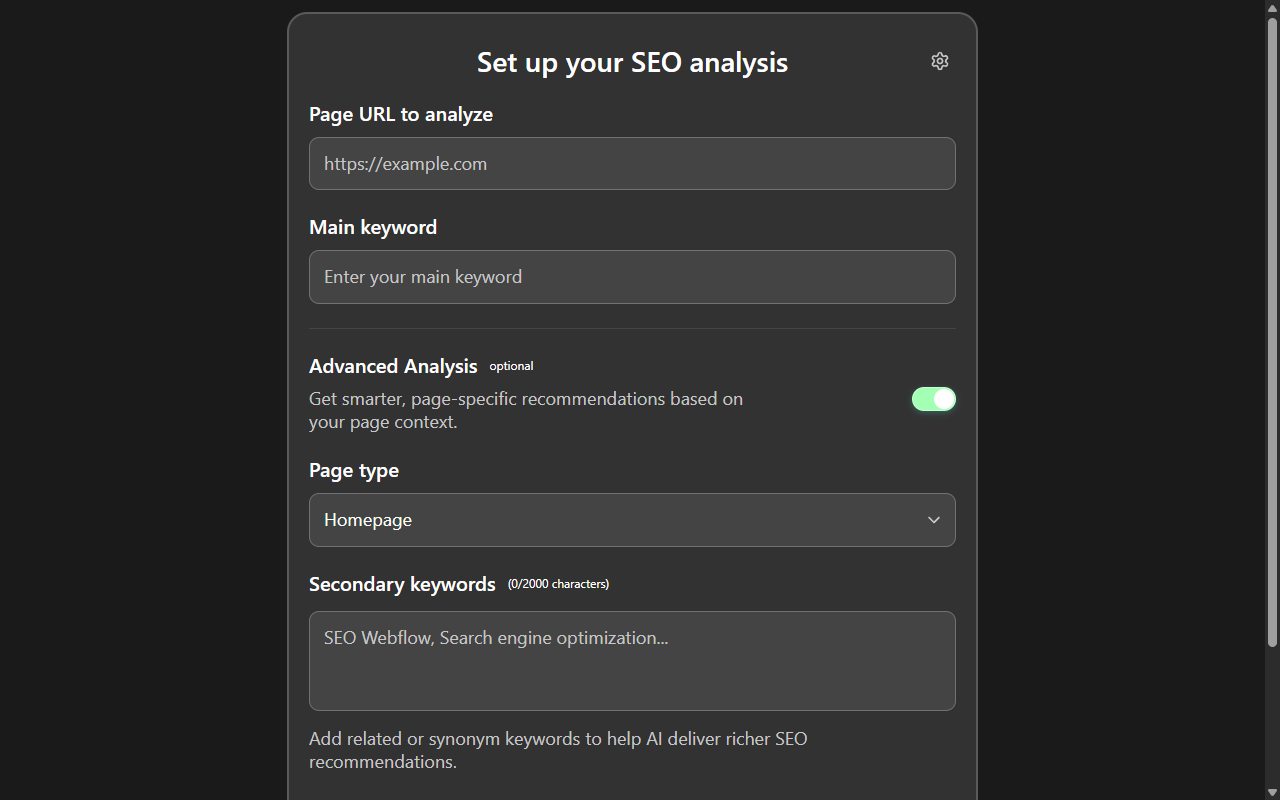
There is a toggle on the setup screen labeled Advanced Analysis. Flip it on and the extension does two extra things before scoring. First, it tries to detect what kind of page you are looking at: homepage, blog post, product page, or landing page. Second, it adjusts the scoring weights based on what it found. A blog post is scored more heavily on heading hierarchy, content depth, and internal links. A product page is scored more heavily on structured data, image alt text, and review schema. A homepage is scored more on brand-level tags and navigation.
This matters because generic SEO scoring tools tend to penalize a homepage for not having a 1,500-word body of text, even though the homepage is not supposed to read like a blog post. Advanced Analysis stops the tool from giving you bad advice on pages where the defaults do not apply.
Adding the Optional AI Layer
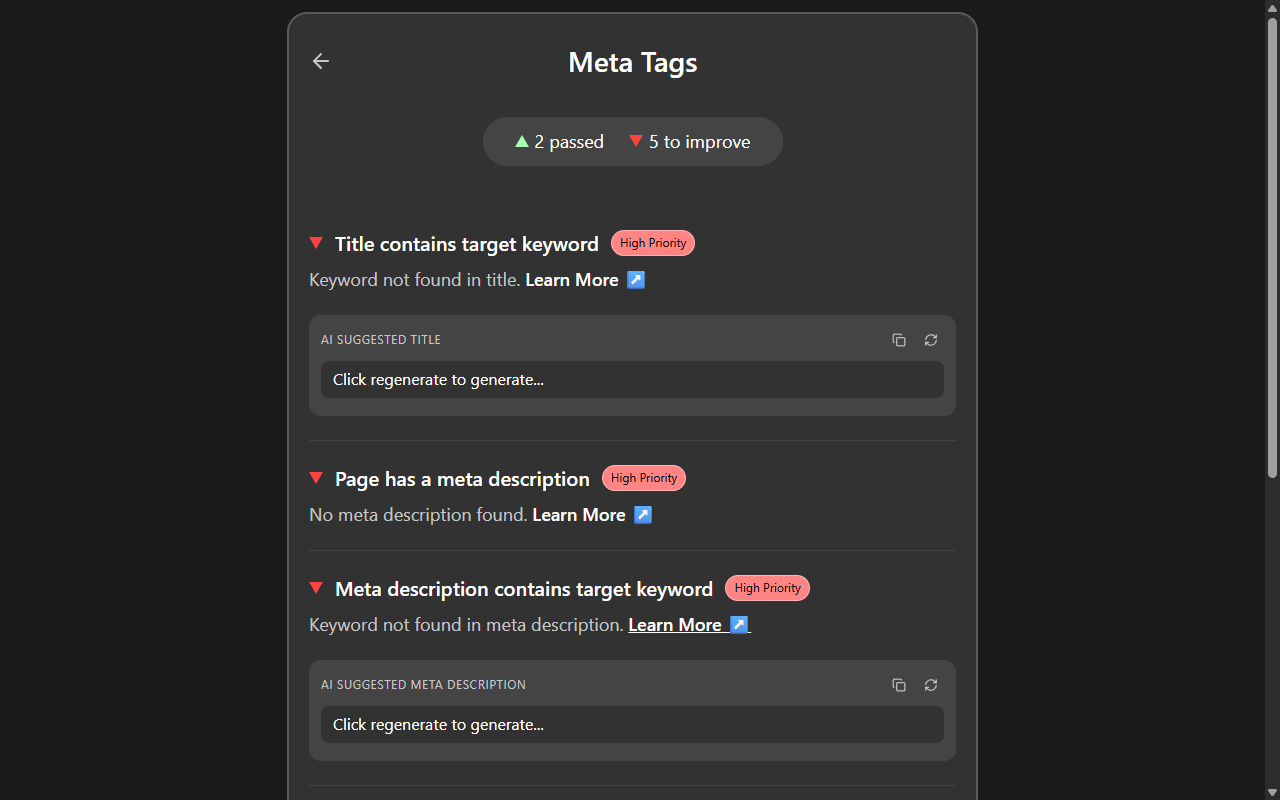
The base extension is fully usable without any AI. The optional layer sits on top and uses a bring-your-own-key model. Open the extension's settings, paste an OpenAI key from your OpenAI API keys page, and a Generate button appears next to several of the recommendations. The key is stored in chrome.storage.local, which is sandboxed to the extension on your machine. It is never sent to PMDS or to anyone we control; the only outbound call is a direct browser-to-OpenAI request when you click Generate.
What the AI layer generates is narrow on purpose: title-tag suggestions tuned to your keyword and length budget, meta-description suggestions, and image alt-text suggestions written from the page context plus the visible image. Each suggestion has a one-click copy button, and you decide what to paste back into your CMS. The model is gpt-4o-mini, so each request lands somewhere in the fractions-of-a-cent range; a full audit pass with every Generate button clicked typically costs less than a US cent.
If you would rather not connect a key, skip the settings panel entirely. Every recommendation still includes a written explanation of what is wrong and what a good fix looks like; the AI layer just shortens the gap between reading the recommendation and pasting the actual replacement string.
A Real Audit, Start to Finish
Here is what a realistic pass looks like. I recently ran the extension on a Next.js blog post about server components. Target keyword: "react server components tutorial." The initial score came back at 64 out of 100, with two High Priority issues and four Medium issues.
The first High Priority issue was a missing meta description; the page had been deployed with the default Next.js template and never set one. The recommendation pointed at the empty meta tag, suggested a 150-character description that included the target keyword, and offered a Generate button. I clicked Generate, got back a tightened version, pasted it into the page's metadata export, and re-ran the audit. That single fix moved the score from 64 to 73.
The second High Priority issue was an H1 that read "Welcome" rather than anything about server components. The extension flagged it, suggested an H1 that included the target keyword while still feeling like a real headline, and I edited the file manually because I wanted to tweak the wording. Re-running the audit pushed the score to 86. The Medium items were smaller: two images missing alt text, one external link without descriptive anchor text, and a slightly short word count. None of them were blockers, but all four were one-line fixes I could make in the same editing session.
That whole loop, install through final score, took under fifteen minutes for a page I had never audited before. The same flow works on a WordPress site, a Webflow site, a static Astro site, or a localhost dev server. If you happen to be working in Webflow, the older Designer app version of the tool can also push changes back through the Webflow Designer API for things like image alt text. For other stacks, including React single-page apps, the manual copy-paste workflow is the right one; that is also the moment you discover the related fun of needing to fix Google Ads conversion tracking on the same SPA, but that is a different blog post.
Privacy, Source Code, and What Runs Where
The entire analysis runs client-side inside the extension. The page DOM is read in the active tab, scored in the extension's service worker, and rendered in the side panel. There is no upload, no telemetry, no analytics. The optional OpenAI call is a direct browser-to-OpenAI request that you control with your own key. The codebase is MIT-licensed and lives on GitHub; if you want to read every check, audit the storage handling yourself, or build and load the extension as an unpacked extension instead of installing from the Chrome Web Store, the README walks through it.
Try It on Your Own Site
Install AI SEO Copilot from the Chrome Web Store, point it at your highest-traffic page, and see what the High Priority list looks like. If you find a check that should exist and does not, or a recommendation you disagree with, open an issue on the GitHub repo; we read every one.
Need someone to actually fix what the audit finds? I build professional WordPress and Webflow sites for small businesses, with SEO built in from day one. Browse what I do at pmds.info, or get in touch to talk about your site.
I also build free, open-source developer tools like AI SEO Copilot. If you find my work helpful, consider supporting me on Patreon.
Your digital website sherpa: practical web tips for small businesses, straight to your inbox
Join the Digital Website Sherpa newsletter. No spam, just practical, actionable advice to help you grow your business online. Unsubscribe anytime.
Paul Mulligan
Freelance Web Developer
Paul Mulligan is a freelance web developer based in Baltimore, MD with 10+ years of experience building WordPress and Webflow sites for small businesses. He focuses on clean design, fast performance, and real results.
Support My Open Source Work
I build free, open-source developer tools like Flavian and Aurelius. If you find my work helpful, consider supporting me on Patreon.
Support on PatreonRelated Articles
Why We're Bringing AI SEO Copilot to Chrome (And What It Took to Build It)
Read ArticleChrome Extension Side Panel Opens on Every Tab? Here's the Per-Tab Fix
Read ArticleUsing the Webflow Designer API to Generate and Apply AI Image Alt Text
Read ArticleReady to Transform Your Business's Website?
Let's discuss how I can create a website that attracts and converts more customers.
Get a Free Consultation